How to import suppliers in Wunderbuild?
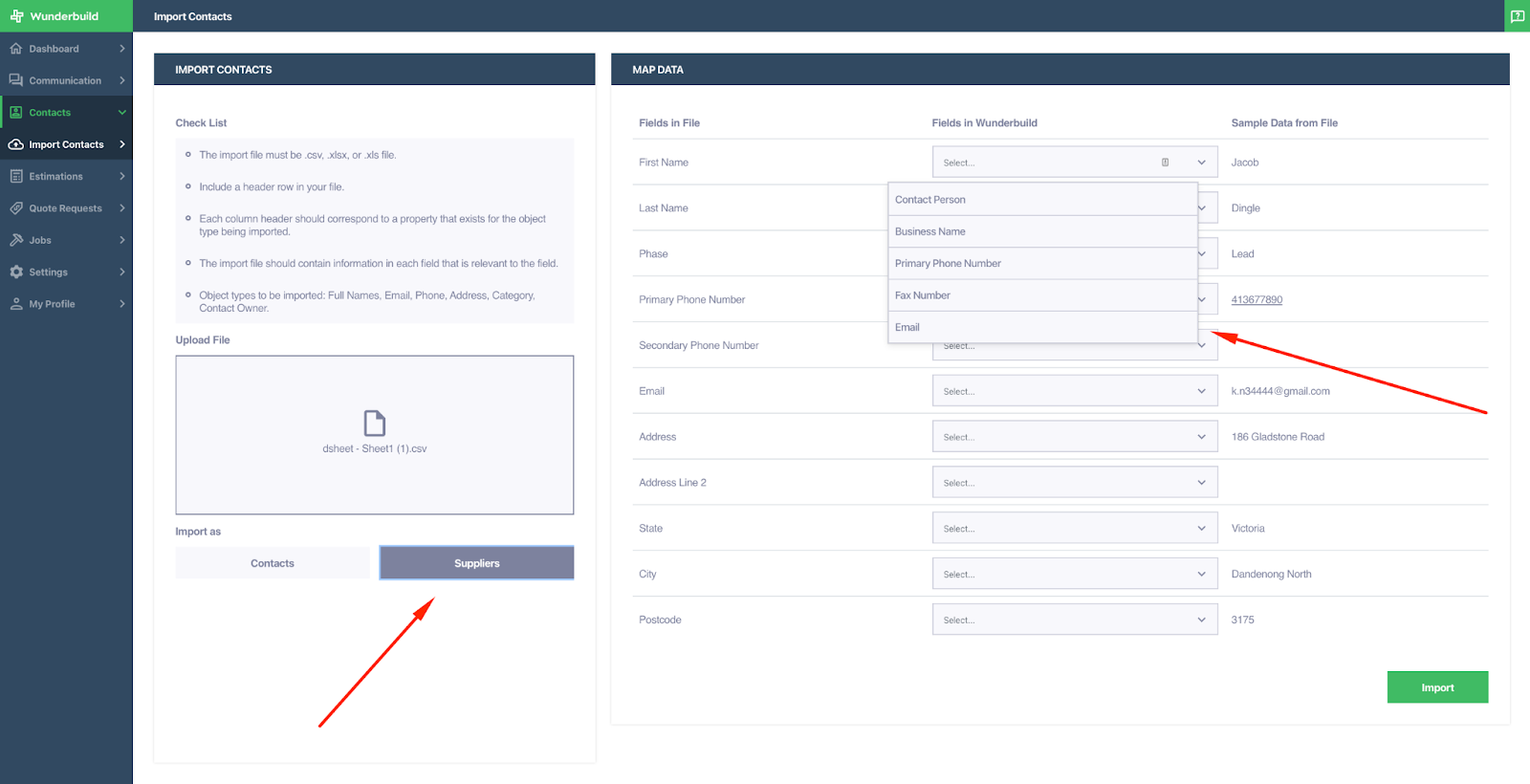
Go to ‘Import Contacts’ under Contacts in the left hand navigation. Click the shaded box to upload your supplier contacts from a supported file (Only .csv, .xlsx or .xls files can be imported into Wunderbuild.) or drag and drop your contacts list to it. Click the ‘Suppliers’ button indicated by the arrow as you want to upload your suppliers contacts not clients contacts. On the right map the headers of your file with the fields from the drop down list and click ‘Import’ when finished.
Related Articles
How to import contacts in Wunderbuild?
Go to ‘Import Contacts’ under Contacts in the left hand navigation. Click the shaded box to upload your contacts from a supported file (Only .csv, .xlsx or .xls files can be imported into Wunderbuild.) or drag and drop your contacts list to it. Click ...
Wunderbuild App Estimation User Guide
1. Accessing the Estimations : Navigate to Estimations by clicking on the four boxes icon on the bottom right of your screen. Select Estimations. 2. Estimation Overview: Click on the estimation name to navigate to the Estimation overview section. 3. ...
Contacts User Guide
1. Accessing the Contact Management Tab: Navigate to the Contact Management for both clients and suppliers. 2. Creating a New Client Contact: Click the "Create New" button at the top right of the screen. Fill in the contact’'s details, click Create. ...
Wunderbuild Job Schedule 2.0 User Guide
Importing The following is a guide on the updated Wunderbuild job schedule. To begin go to your jobs then schedule section inside your job. 1. Click ‘options’ on your schedule to import your schedule into Wunderbuild. Below are instructions on the ...
How to upload bills from Xero to Wunderbuild?
1. Enable Two-way sync in Settings > Integrations > Configure. 2. On your Job Overview Page. Under Details, click on the edit button to add your Xero tracking name. The name shall appear in Xero in the WB Job dropdown button. 3. In Xero, make sure to ...